05 Restore the app
Switching or reinstalling: restore a purchase
On your new iPhone or iPad, open the App Store and tap the account avatar in the top-right corner. Confirm that you are using the original purchase Apple ID, then open Purchased and find Shadowrocket. The list may have a slightly different name in different system versions. Tap the redownload icon next to the listing. The same purchase account can use the app on supported iPhone and iPad devices without paying again.
If you see a purchase button instead of the redownload icon, do not place another order yet. Check whether Media & Purchases is still using the original account, whether the current storefront can open the listing, and whether the device meets the system requirements shown on the store page. A purchase record confirms that you previously obtained purchase rights; it does not mean regional or compatibility conditions remain unchanged after switching devices.
Restore connection details after installing
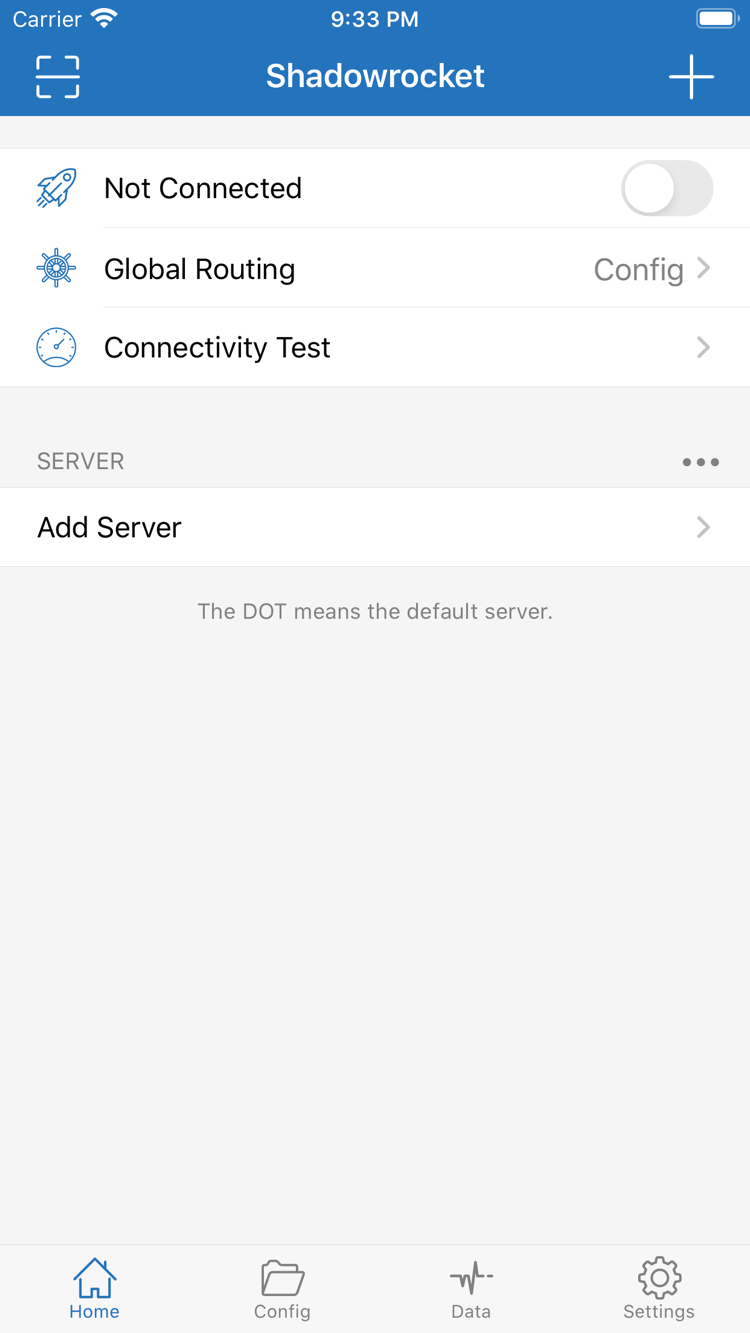
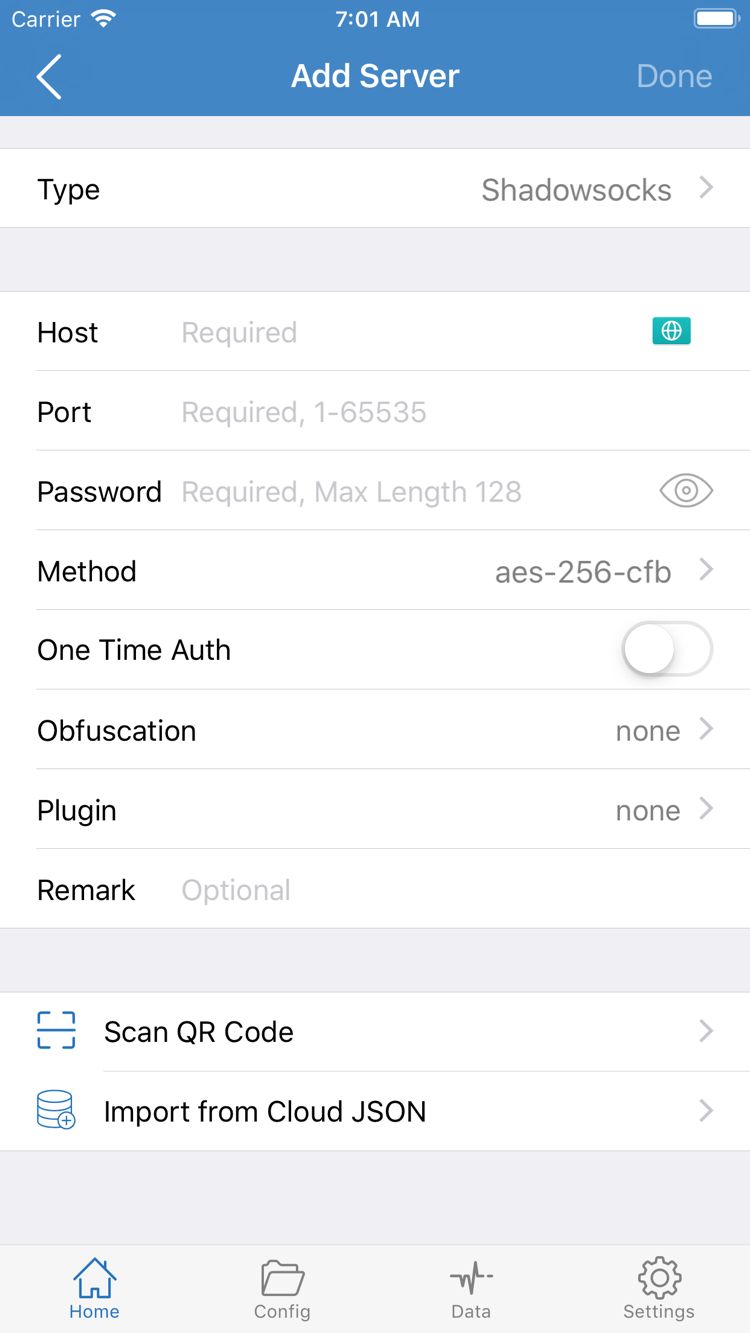
Redownloading from Purchased restores the app itself; it does not confirm that subscriptions, manually entered servers, or Config have been restored. If you can still use the old device, make sure you have kept the details you need. After installing on the new device, import your existing subscription or server details as needed. Before connecting for the first time, check Global Routing and the selected server rather than assuming the old device's defaults have transferred.
When switching between Mac, Windows, Android, and Linux devices, return to Download for all platforms and choose an installer for the new device's architecture and system. Even when switching between two Macs, check the chip again. If you have moved from Intel to Apple Silicon, download the installer for the new device.